On my first day on the spinning mill ERP project, I opened ERPNext and saw a sidebar full of modules: Accounting, Selling, Buying, Stock, Manufacturing, Projects, CRM, Quality, HR, Payroll... It felt like walking into a huge mill without a floor plan.
Then a senior consultant drew four arrows on a whiteboard and said: "Every business runs these four journeys. Every module is just a stop along one of them." That whiteboard is the most useful thing anyone taught me about ERPNext.
This episode is that whiteboard.
Keywords
- Module: A group of related DocTypes (Selling, Stock, Accounts...). Mostly a way of organizing the sidebar and code.
- DocType: A type of record, like Sales Order or Employee. Each one is a database table plus a form, permissions and logic.
- Master: Reference data you set up once: Item, Customer, Supplier, Warehouse, Employee.
- Transaction: A business event: Sales Order, Purchase Receipt, Salary Slip.
- docstatus: A document's state:
0Draft,1Submitted,2Cancelled. - Ledger: The system's permanent record. Stock Ledger Entry for quantities, GL Entry for money.
- Mapping: Creating the next document from the previous one (the Create button), copying items, rates and links.
Character Mapping
- ERPNext: The whole mill campus.
- Modules: Departments (Sales office, Stores, Spinning floor, Accounts, HR).
- Masters: The mill's registers of products, buyers, suppliers and workers.
- Transactions: The paperwork that moves between departments.
- Ledgers: The locked record books in the accounts office. Nobody writes in them directly, the paperwork does.
1. The Four Journeys
🛒 Lead to Cash (Selling)
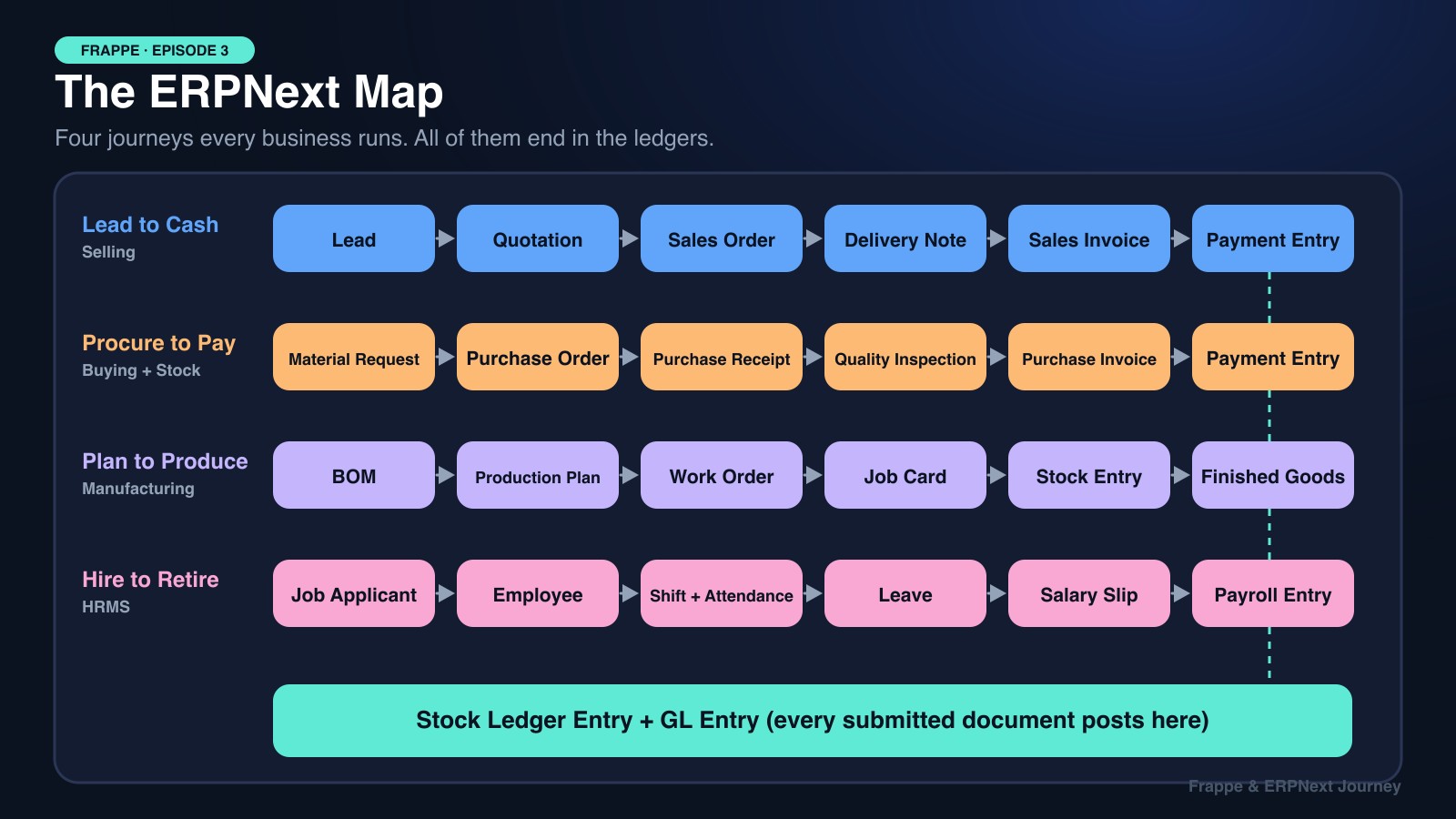
Lead → Quotation → Sales Order → Delivery Note → Sales Invoice → Payment Entry
A buyer asks for 40s combed yarn. Sales sends a quotation, the buyer confirms with a Sales Order, the stores dispatch cones with a Delivery Note, accounts bills with a Sales Invoice, and the money arrives as a Payment Entry.
📦 Procure to Pay (Buying + Stock)
Material Request → Purchase Order → Purchase Receipt → Quality Inspection → Purchase Invoice → Payment Entry
The mill needs raw cotton. Stores raise a Material Request, purchasing places a Purchase Order, bales arrive with a Purchase Receipt, quality checks micronaire and moisture, then the supplier's bill and payment follow.
🏭 Plan to Produce (Manufacturing)
BOM → Production Plan → Work Order → Job Card → Stock Entry → Finished Goods
The Bill of Materials says what goes into one kg of yarn. Planning turns sales demand into Work Orders, Job Cards track each machine operation, and Stock Entries move cotton in and finished cones out.
👷 Hire to Retire (HRMS)
Job Applicant → Employee → Shift & Attendance → Leave → Salary Slip → Payroll Entry
A mill running 24/7 in three shifts lives and dies by attendance and payroll. Since version 14, HR and Payroll live in a separate app, HRMS, installed next to ERPNext.
2. One Export Order, End to End
Let's follow a single yarn export order through Lead to Cash:
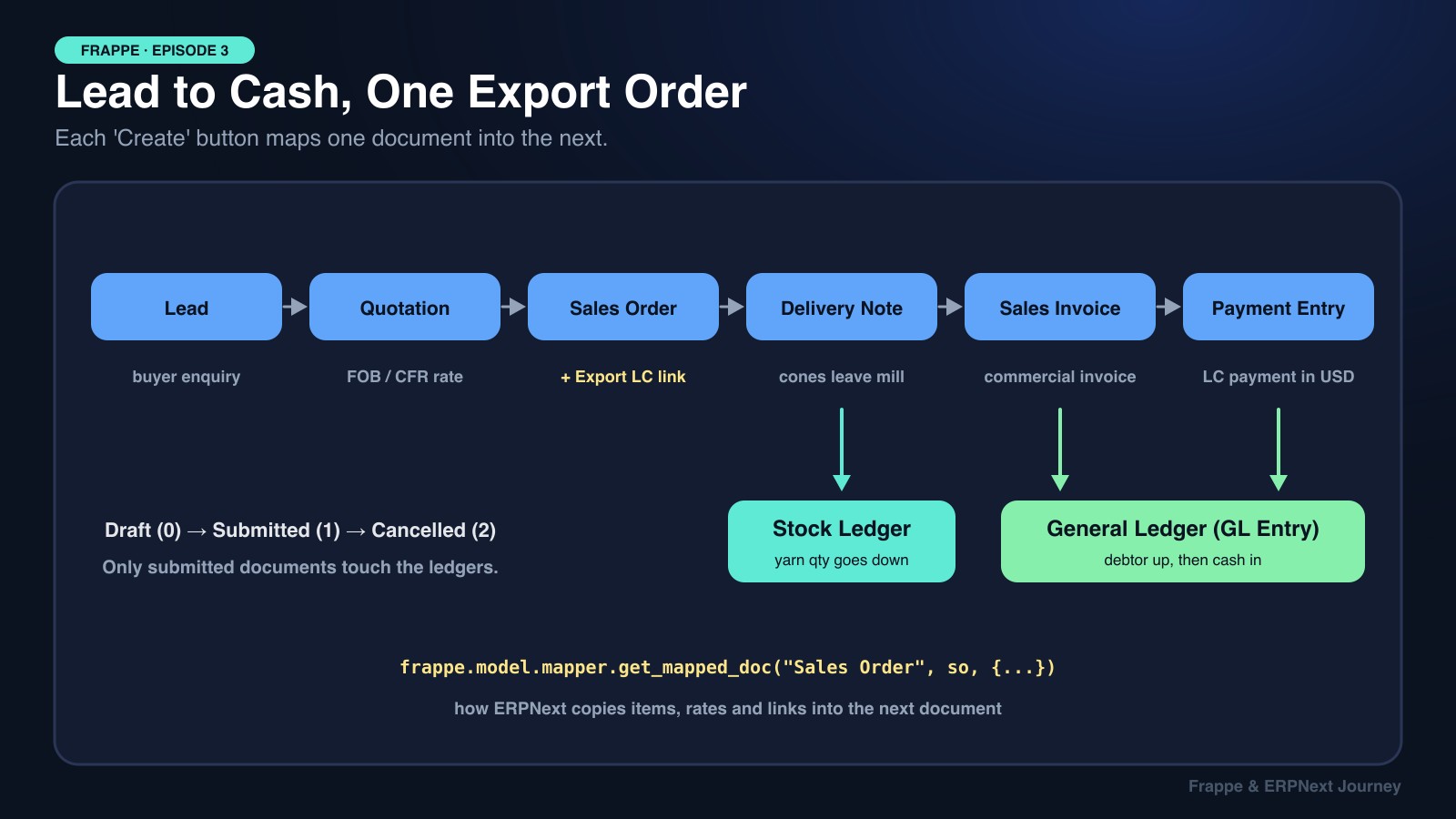
Step 1: Lead and Quotation. A buyer from abroad asks for 20 tonnes of 30s combed yarn. Sales quotes an FOB or CFR price per kg.
Step 2: Sales Order. The buyer confirms. On our project, we added custom fields linking the Sales Order to the bank's Export Letter of Credit (LC), so nobody could ship against an expired LC.
Step 3: Delivery Note. The truck leaves with sealed cartons. When it's submitted, ERPNext writes Stock Ledger Entries, and the yarn quantity in the finished goods warehouse goes down.
Step 4: Sales Invoice. The commercial invoice is created from the Delivery Note. Submitting it writes GL Entries: the buyer's account (debtors) goes up and sales income goes up.
Step 5: Payment Entry. When the LC pays out in USD, the Payment Entry clears the debtor and records the bank receipt, including any exchange-rate difference.
What Happens When You Click "Create"
Each Create → Delivery Note button calls a whitelisted Python function that maps the source document into a new one. Here's a simplified version of how ERPNext does it:
from frappe.model.mapper import get_mapped_doc

@frappe.whitelist()
def make_delivery_note(source_name, target_doc=None):
    return get_mapped_doc(
        "Sales Order",
        source_name,
        {
            "Sales Order": {
                "doctype": "Delivery Note",
                "validation": {"docstatus": ["=", 1]},  # only from submitted orders
            },
            "Sales Order Item": {
                "doctype": "Delivery Note Item",
                "field_map": {"name": "so_detail", "parent": "against_sales_order"},
            },
        },
        target_doc,
    )
Notice the field_map: every Delivery Note row remembers which Sales Order and which row it came from (against_sales_order, so_detail). That's how ERPNext knows an order is "50% delivered", and how you can trace any invoice back to its order. When you customize ERPNext, you'll often add your own fields to these maps.
3. Three Layers Under Every Module
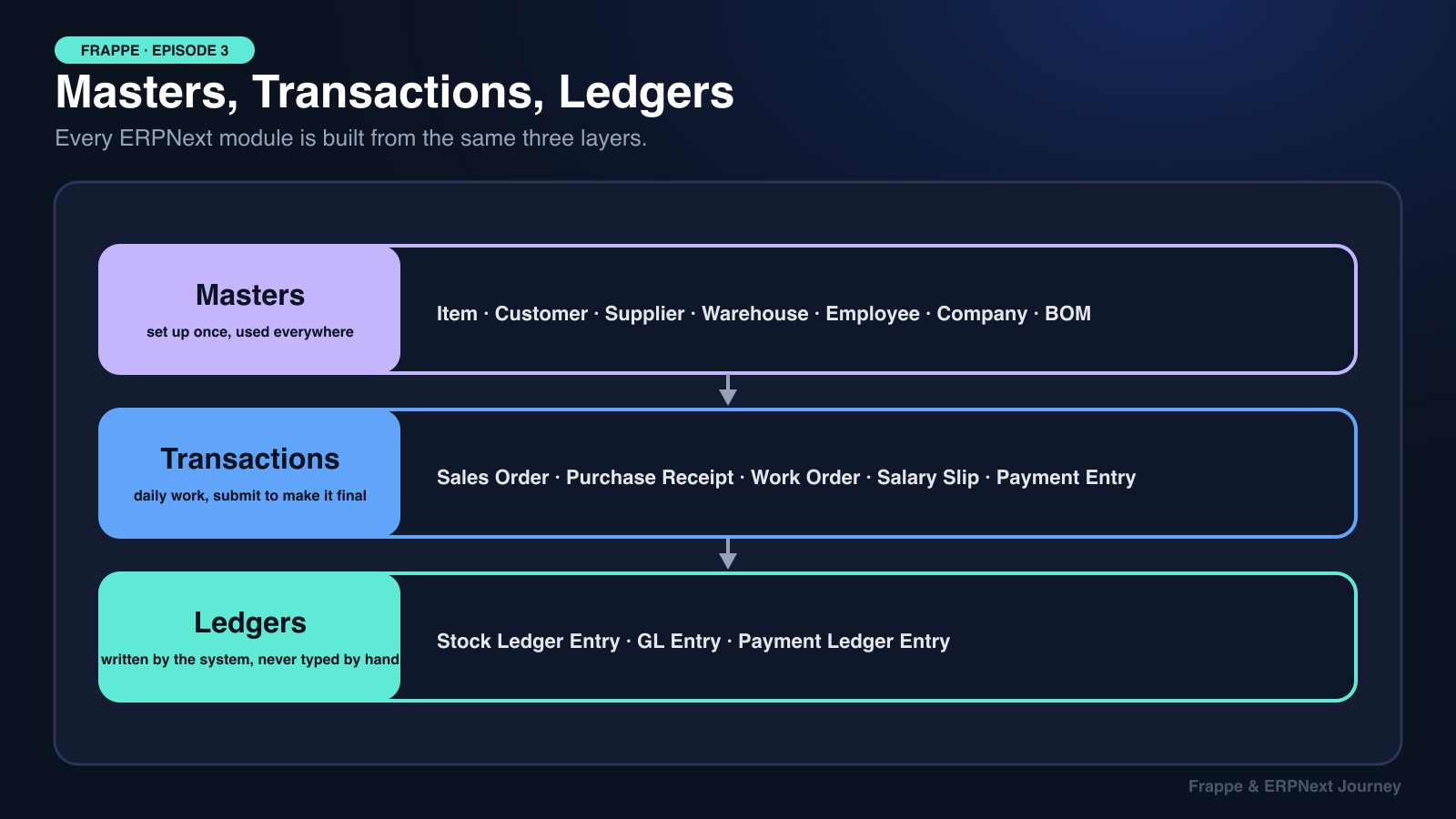
Once you see these three layers, every module looks the same:
- Masters are set up once and reused: Item, Customer, Supplier, Warehouse, Employee, Company, BOM.
- Transactions are the daily work. They start as Draft (0), become final when Submitted (1), and can only be reversed by Cancelling (2). To fix a submitted document, you cancel it and amend it, which creates a copy like
SO-0042-1. - Ledgers are written by the system on submit, never typed by hand: Stock Ledger Entry for quantities and valuation, GL Entry for money, Payment Ledger Entry for what's outstanding.
🔑 This is ERPNext's golden rule: reports read the ledgers, not the transactions. The Stock Balance report adds up Stock Ledger Entries, and the Balance Sheet adds up GL Entries. If a report looks wrong, check which documents posted (or failed to post) to the ledger.
You can see this yourself in bench --site mill.localhost console:
frappe.get_all(
    "GL Entry",
    filters={"voucher_type": "Sales Invoice", "voucher_no": "ACC-SINV-2026-00042", "is_cancelled": 0},
    fields=["account", "debit", "credit"],
)
# [{'account': 'Debtors - SML', 'debit': 61200.0, 'credit': 0.0},
#  {'account': 'Sales - SML',   'debit': 0.0,     'credit': 61200.0}]
Debits equal credits, every time. That's double-entry accounting, and ERPNext enforces it for you. (It's also why accounting data needs strong consistency. See System Design Episode 14: CAP Theorem.)
4. How Our Mill Mapped onto ERPNext
| Mill department | ERPNext module | Standard DocTypes | What we customized |
|---|---|---|---|
| Sales & Commercial | Selling | Quotation, Sales Order, Delivery Note, Sales Invoice | Export LC tracking, packing lists, FOB/CFR pricing |
| Raw material stores | Buying + Stock | Material Request, Purchase Order, Purchase Receipt, Batch | Cotton lot quality fields (micronaire, staple, trash %) |
| Quality lab | Stock / Quality | Quality Inspection | Mandatory QI before bales enter the warehouse |
| Blowroom & spinning | Manufacturing | BOM, Work Order, Job Card, Stock Entry | Mixing Plan DocType (built from scratch) |
| Accounts | Accounts | Payment Entry, Journal Entry, GL Entry | Multi-currency export receipts |
| HR & Payroll | HRMS | Employee, Shift Type, Attendance, Salary Slip | Three-shift rosters, production-linked pay |
The pattern: use the standard flow wherever possible, customize at the edges. Every standard DocType you replace with a custom one is a piece of upgrade pain you'll pay for later. The rest of this series covers how to customize safely.
🍕 Explain It Like You're 5
Imagine a lemonade stand. You buy lemons and sugar (Procure to Pay), make lemonade (Plan to Produce), sell cups to neighbors (Lead to Cash), and pay your little brother for helping (Hire to Retire).
Every time something happens, you write it in two notebooks: one for how many cups and lemons you have, and one for how much money you have.
ERPNext is a giant lemonade stand, and those two notebooks are the Stock Ledger and the General Ledger!
🎯 Debugging Cheat Sheet
| Symptom | Likely cause | Where to look |
|---|---|---|
| Stock report doesn't match the warehouse | A document was saved but never submitted | Filter by docstatus = 0; check Stock Ledger Entry |
| Can't edit a submitted Sales Order | Submitted documents are locked | Cancel and Amend, or use "Allow on Submit" fields |
| "Create" button missing | Source not submitted, or already fully delivered/billed | per_delivered / per_billed on the order |
| Invoice not linked to its order | Created manually instead of via Create | Item rows: sales_order, delivery_note fields |
| Balance sheet off after a cancel | Expecting old entries to disappear | Cancelled GL Entries stay, marked is_cancelled = 1 |
| HR / Payroll menu missing | HRMS isn't installed (v14+) | bench get-app hrms, then install-app hrms |
Key Takeaways for Interviews
- Four journeys: Lead to Cash, Procure to Pay, Plan to Produce, Hire to Retire. Every module is a stop on one of them.
- Three layers: masters, transactions, ledgers. Reports read the ledgers.
- docstatus drives everything: only submitted documents post to the ledgers; you fix them with cancel and amend.
- Mapping keeps traceability:
get_mapped_doccopies data and stores back-links (against_sales_order,so_detail). - Customize at the edges: keep the standard flow, add custom fields and DocTypes where the business is truly different.
📚 Official Sources
Everything here is checked against Frappe's own documentation and blog:
- ERPNext documentation
- Sales Order
- Delivery Note
- Stock Ledger
- General Ledger
- Frappe HR documentation
- Frappe blog: Half a billion ledger entries
Next episode, back to the terminal: we'll open up the frappe-bench folder and see how one bench can host many sites, each with its own database.